Findings and the trust score
Last updated 7 November 2026
For anyone who triages security results in Spellwarden. At the end you will have filtered the findings list, read what a finding tells you, accepted one with a note, reported one by hand and understood how the organisation's trust score is calculated and what raises it.
A finding is one result of a scan: a rule matched something in a skill, an MCP server or a repository. Every finding has a severity (critical, high, medium or low), the id of the rule that raised it and a state. People can add findings of their own, called manual findings, for problems no rule caught.
Plans: Team and Enterprise
One list across skills, servers and repositories
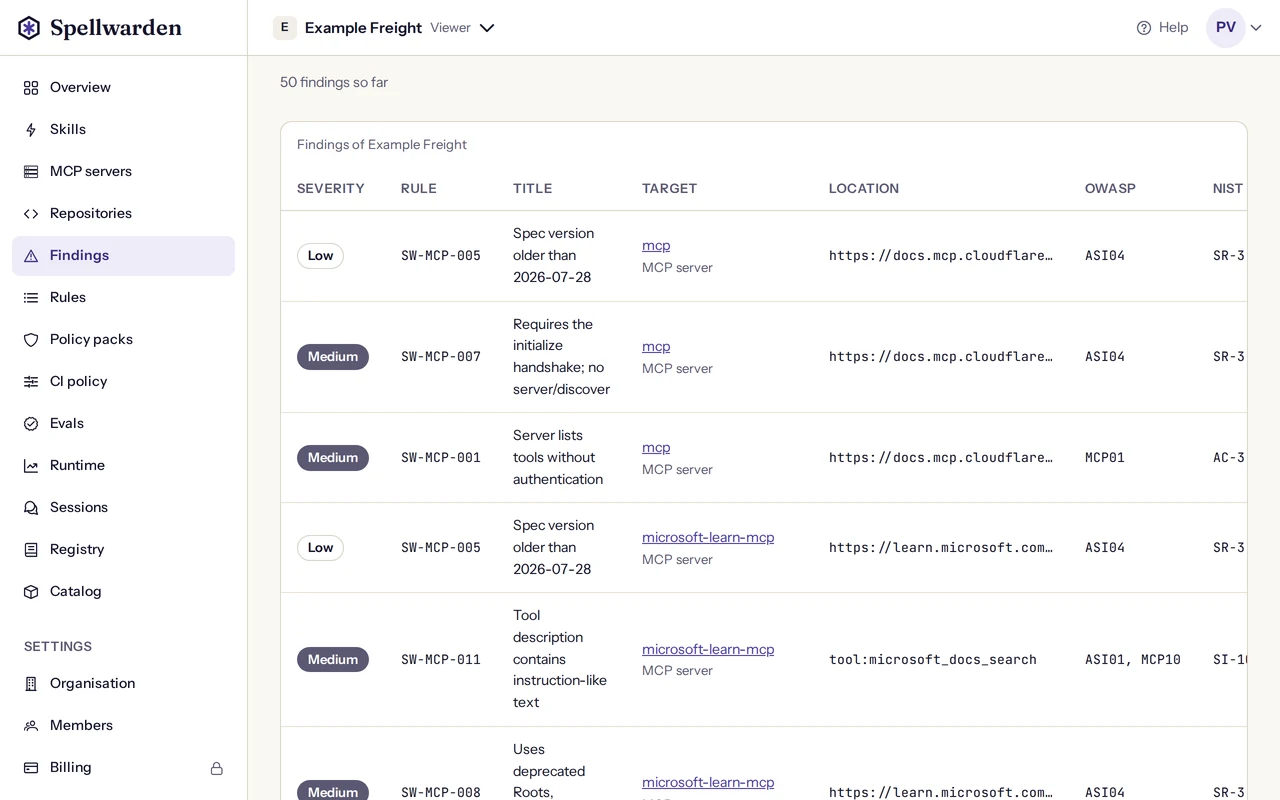
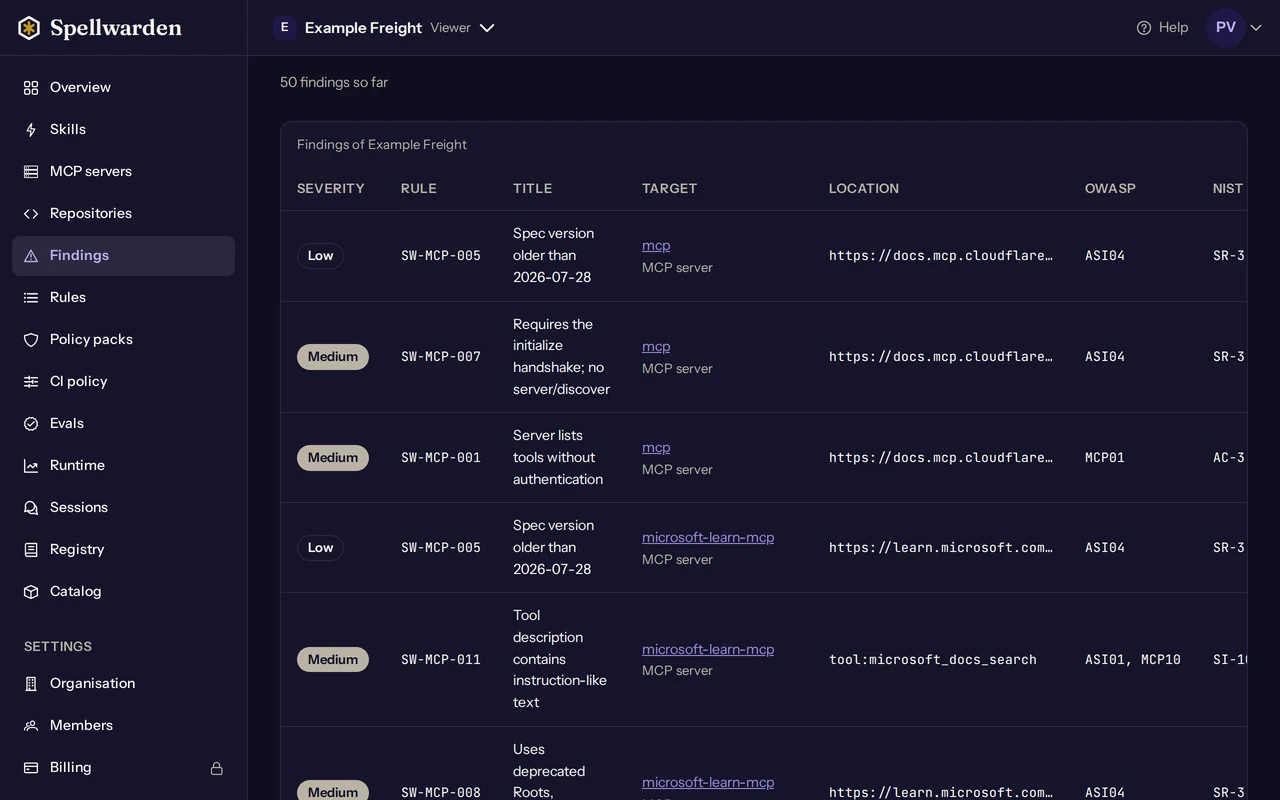
The Findings page shows every finding of the organisation in one table: the findings of each skill, MCP server and repository from its latest scan, and the open and accepted manual findings. The newest come first, 50 to a page, and Show more loads the next page. Each row names its target and links to it, so you can go from a finding to the skill page, the server page or the repository page where it was found.
Only the latest scan of a target counts. When a new scan of a skill finishes, the findings of the scan before it leave the list, and findings the new scan no longer reports are marked fixed. The same list is available to scripts through the API and to Claude through the connector, whose list_findings tool takes the same filters and returns the same rows.
Open the Findings page in the live demo
Filters
Five filters narrow the list. They sit above the table, and the dashboard keeps them in the address, so you can bookmark a filtered view or send it to a colleague.
Severity: critical, high, medium or low.Status: Open, Accepted, Fixed or Tracked by rule. These are the four states of a finding, explained below.Target: Skill, MCP server or Repository.Area: the kind of rule that raised the finding. The areas are skills, MCP servers, agent configuration, the registry and A2A agent cards. A manual finding has no rule, so it appears only when the area is set to all areas.Origin: Rule for findings raised by a scan, Manual for findings a person reported.
A result count appears beside the filters. If nothing matches, the table says so and offers to clear the filters. The area filter pairs well with the rule reference: the rule ids in the Rule column are explained one by one under Scanner rules.
The four states
- Open: the latest scan raised it, or a person reported it, and nobody has dealt with it. Open critical and high findings count against the trust score.
- Accepted: a person decided to live with it and wrote a note. It stays recorded and stops counting as open.
- Fixed: the latest scan no longer finds it, or, for a manual finding, a person marked it fixed.
- Tracked by rule: a manual finding that was promoted into an organisation rule, after a scan found the same thing through that rule. The rule's own finding now carries it.
What a finding shows
Each row of the table carries what you need to decide what to do:
SeverityandRule: the severity and the id of the rule, for example a rule of the skill, MCP server, configuration or registry areas. A manual finding has no rule id.Title: a short sentence naming the problem. A manual finding adds who reported it, and a promoted one adds the id of the organisation rule.TargetandLocation: the skill, server or repository, and the file and line, the endpoint, ortool:<name>for a tool of a server.OWASPandNIST: the codes the rule maps to. The NIST column is a provisional mapping to SP 800-53 base controls, and the page says so under the table.Status,OriginandNote: the state, whether a scan or a person raised it, and the note written when it was accepted.
The evidence behind a finding is the line or the value that matched, with anything shaped like a credential masked and cut to 300 characters. The dashboard's table does not print it. It is part of the row that the API and the connector return. To see why a rule fired, open its page in the rule reference, which shows an example that triggers it and how to tell a false positive from a real finding.
Accept a finding
Some findings are real and acceptable: a script that deletes a temporary directory, a server on a trusted internal host. Accepting a finding records that decision with a note instead of leaving the finding open. The finding stays in the list as Accepted, with your note beside it, and it no longer counts as open.
Accepting needs write access: a member, manager or owner can accept a medium or low finding. Accepting a critical or high finding, or a finding from a rule that flags a malicious indicator, needs a manager or owner. Other people see a line under the finding that names that requirement. A viewer sees the list and can accept nothing.
- Open the Findings page, or the page of the skill or server, and find the finding. Filter by status Open if the list is long.
- Choose
Accept with noteon its row. The dialog repeats the rule id. - Write the note: why this is acceptable, and what would change your mind. It is required, from 1 to 500 characters.
- Choose
Accept finding. The row shows the state Accepted and your note.
The note is kept with the finding and is part of the record of who decided what; the organisation's audit log also records the change. Write it for the person who reads it in six months. To undo the decision, choose Reopen on an accepted row: it counts as open again, and your note stays until the next change.
When an accepted finding comes back
An acceptance belongs to the finding as the scan saw it: the same rule, in the same file, on the same matched text. If a later scan matches something different, that is a new finding and it starts as open. If the same match remains, the acceptance carries over to the new scan.
When accepting is not offered
- While a scan of the target is running, the accept and reopen controls are disabled, and the API answers that a scan is in progress. Try again when it has finished.
- If a newer scan has replaced the one that raised the finding, the API refuses with the message that the finding belongs to an older scan. Reload the list and act on the current finding.
- In an organisation that is read-only because of its billing state, every control is disabled.
- Findings of a repository cannot be accepted in the dashboard. A repository's findings come from its pipeline, so they are accepted in the repository itself, in the baseline file, and the dashboard shows them as accepted in the repository. See the baseline file.
Manual findings
A rule can only find what it was written to find. When a person sees a problem no rule caught, such as a skill that asks for far more access than its task needs, a manual finding records it in the same list, with the same states and the same effect on the counts. Manual findings exist for skills and MCP servers. A repository has none, because its findings come from its pipeline.
- Open the skill's page or the server's page and choose
Report a finding. It needs write access. - Give it a title of up to 120 characters and choose a severity.
- Describe what you found, in up to 1000 characters. Do not paste secrets: anything shaped like a credential is masked before the text is stored.
- Add where it is. For a skill, give a file path and a line number, both optional. For a server, pick one of its tools, or none.
- Choose
Report. The finding appears as Open, with you named as the reporter.
A target holds up to 100 open or accepted manual findings; close some before reporting more. Reporting is also limited per day, to 50 findings for one person and 200 for the organisation. A target that is being scanned cannot take a report until the scan has finished.
A person can accept a manual finding, reopen it or mark it fixed, with an optional note. Marking a critical or high manual finding fixed needs a manager or owner, exactly as accepting does, because it closes the risk just as surely. Scans never mark a manual finding fixed on their own: a person decides, or a rule takes it over, as the next section describes. A manual finding counts toward the target's open findings, and for a skill it changes the curation score, but it never quarantines a skill; only a rule's finding does that.
Turn a finding into an organisation rule
If a manual finding describes something you want every scan to catch, a manager or owner can promote it into an organisation rule. Choose Promote to a rule on the row of an open or accepted manual finding that is not yet a rule. The dialog asks what the rule should look for: for a skill, a pattern in some of its files; for a server, a check on what the probe saw, such as its authentication or a tool description. Before anything is created, the dialog tests the rule against the finding's own target and shows how many matches it found, and you confirm that an organisation rule cannot be edited afterwards.
The rule gets an id of the form SW-ORG-001 and applies to each target from its next scan. The target the finding came from is scanned again straight away. When that scan finds the same thing through the new rule, the manual finding moves to the state Tracked by rule and the rule's own finding takes over. The row then shows which rule tracks it. Writing the rule, turning it on and off, and adding it to a policy pack are covered in Rules, policy packs and exports.
The trust score
The trust score is one number from 0 to 100 for the whole organisation, shown on the Overview with the three parts it is made from. It is worked out again on every read from the current scans and findings, so it is always current after a scan or a triage. If the organisation has nothing to count yet, the Overview says there is not enough data.
Trust = 0.4 x Security + 0.3 x Migration + 0.3 x Eval coverageSecurity: of the skills, MCP servers and repositories that have a finished scan, the share that are clean. A skill or server is clean when its scan did not end incomplete and it has no open critical or high finding. A repository counts only when its pipeline's result is attested by the code host's signed token, and it is clean when its default branch scan passed, its lock check is not failing and it has no open critical or high finding.Migration: of the MCP servers that can be checked, the share that are ready for the new MCP specification version. See the migration report.Eval coverage: the share of scanned assets that have a qualifying eval. It is shown, but not counted yet.
The weights are 0.4 for security, 0.3 for migration and 0.3 for eval coverage. Eval coverage is shown but not counted yet. The Overview marks it as not counted, and the score uses the other two. A part with nothing to count is left out, and the weights that remain are divided by their sum. Today that means security counts for 0.571 and migration for 0.429.
An example. An organisation has 10 scanned assets and 8 of them are clean, so Security is 80. Of its 4 checkable servers, 2 are ready, so Migration is 50. The score is (0.4 x 80 + 0.3 x 50) divided by (0.4 + 0.3), which is 67. The score and each part are rounded half up to whole numbers.
Accepted critical and high findings are not counted as open, so accepting one raises Security. That is why accepting them needs a manager or owner, and why the Security line shows how many assets carry accepted critical or high risk. The score never hides that number.
How to raise it
- Open the Findings page with severity set to critical, then high, and status Open. Fix the cause in the skill or server and scan again. A fixed finding drops out of the next scan.
- Check for scans that ended incomplete. An organisation rule that cannot run makes every scan of its area incomplete, and an incomplete asset is never clean. A manager or owner can turn such a rule off or archive it.
- Accept a finding only when it is a false positive or intended behaviour, and write the reason in the note.
- Open the migration report of each server that is not ready and work through its checklist.
- Scan repositories in CI so their results are attested. A repository whose result is not attested does not count.
Open the overview in the live demo
The same score and its parts are available to scripts and to Claude. The connector's get_trust_score tool returns the score, the three parts and the formula.